

KeepMusic All-In-One - Frequently Asked Questions
[1] Launch KeepMusic All-In-One Music Converter on your computer (Windows/Mac).
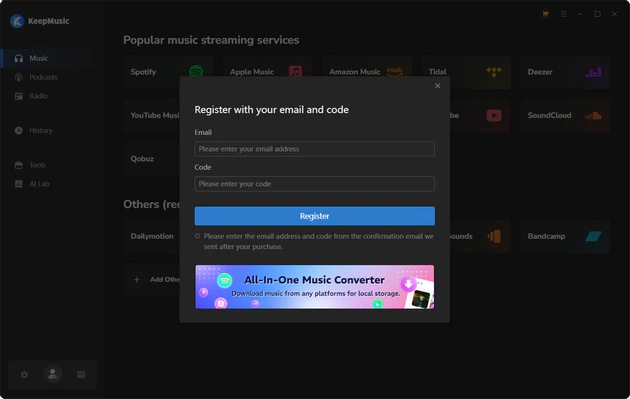
[2] Click the Profile icon to open the registration window. Enter your registration email and license code (received via email) into the corresponding fields, then click Register to complete the registration.
If you see an "Invalid Code" error when activating KeepMusic, please check the following:
[1] Make sure your license matches the KeepMusic version and platform you purchased. Windows and Mac license codes cannot be used interchangeably.
[2] Make sure both are entered exactly as shown in your purchase email. Please check for extra spaces or incorrect characters.
[3] Each license code supports one device. If the code is already activated on another device, please deactivate it there before activating it on your current device.
If you still get the Error Message, please contact our support team via support@keepmusic.io for help.
KeepMusic One supports downloading and converting music from a wide range of popular streaming platforms, including Spotify, Apple Music, Amazon Music, Tidal, YouTube Music, Deezer, Pandora, Line Music, Audible, SoundCloud, Qobuz, as well as online platforms such as YouTube and Vimeo. It supports downloading songs, albums, playlists, podcasts, audiobooks, and other audio content, and converting them to common audio formats for offline playback. In addition, you can download Spotify music videos and podcast videos as MP4 files.
KeepMusic One supports batch download. You can add entire playlists from supported platforms at once and convert multiple songs in one go! It is faster and more convenient for large playlists downloading and converting.
Yes. KeepMusic can preserve the original lossless audio quality available from supported streaming platforms. It supports lossless audio from Spotify Lossless, Apple Music (Hi-Res Lossless), Amazon Music (Ultra HD), TIDAL (HiFi & Master), and Deezer HiFi. The downloaded files retain the source audio quality without unnecessary quality loss during conversion.
KeepMusic All-In-One Music Converter is safe and reliable to download and use. The program is free from ads and third-party plugins and does not modify or collect personal data from your streaming accounts. It provides a secure solution for converting streaming music to local files on your computer. With long-term product development and continuous updates, KeepMusic has established itself as a trustworthy tool for offline music conversion.
KeepMusic All-In-One Music Converter supports converting music to multiple common audio formats, including MP3, AAC, WAV, FLAC, AIFF, and ALAC. These widely compatible formats make it easy to transfer the converted music to other devices such as smartphones, tablets, MP3 players, car audio systems, or external storage devices for offline playback without restrictions.
The application supports macOS 11 or above, including macOS 26 Tahoe. Systems running versions earlier than macOS 11 are Not supported. In that situation, please either upgrade to macOS 11 or above, or use the Windows edition instead. If you are a paying user and cannot upgrade, a free license for the Windows version can be issued. Please feel free to contact KeepMusic Customer Support Team at support@keepmusic.iofor assistance.
On ARM-based systems, the “nativeBridgeHelper” message appears when your operating system requires confirmation to grant authorization. Simply enter your computer’s username and password to allow the program to function correctly. Your login information remains completely secure; it is never stored or transmitted and is used solely by your operating system to complete the verification.
Before contacting support, please try the following steps:
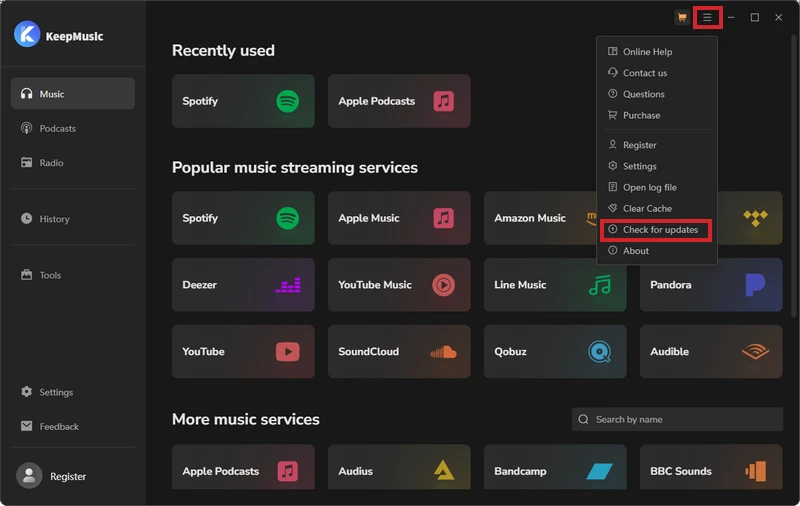
[1] Update to the latest version: Go to Menu > Check for Updates in the program, or download the latest version from our website.
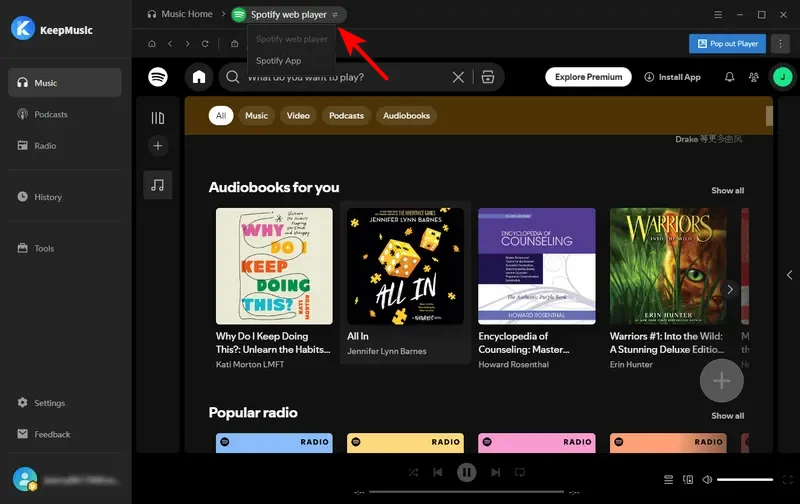
[2] Switch App/Web Converter Mode.
[3] Clear the program cache: Go to Menu > Clear Caches and try again.
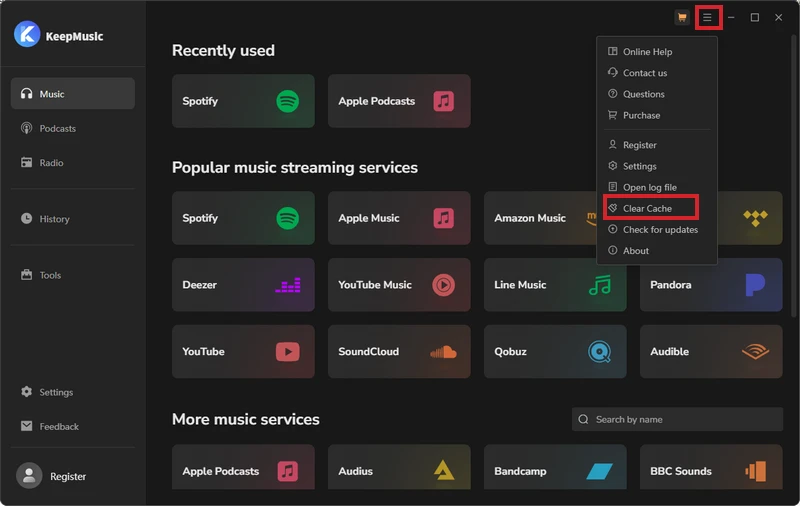
[4] Check your account status: Make sure you can log in to your account normally through a web browser and that your subscription is still active.
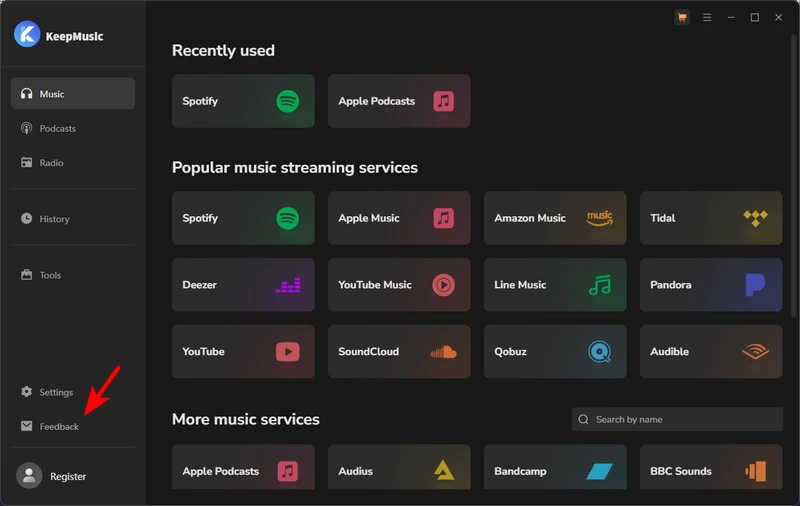
If the above steps do not resolve the issue, click Feedback in the bottom-left corner of the program to report the problem. You can also contact our support team at support@keepmusic.io.
Please describe the problem, the troubleshooting steps you have already tried, and the results. If possible, also include screenshots or a screen recording and the program logs to help us identify the issue.